
Toggl Manager
This Macro allows you to set preset time entries for Toggl Track.
It uses the Toggl plugin for Obsidian. Make sure that is set up before you continue.
We’ll need to install a QuickAdd user script for this to work. I have made a video which shows you how to do so - click here. You will need to add the user script to a new Macro choice, which you then run from the QuickAdd menu. You can find the script here.
Installation
Section titled “Installation”- Save the script (
togglManager.js) to your vault. Make sure it is saved as a JavaScript file, meaning that it has the.jsat the end. Important: Do not save scripts in the.obsidiandirectory - they will be ignored. Valid locations include folders like/scripts/,/macros/, or any custom folder in your vault. - In Settings → QuickAdd, click New choice → Macro. The Macro Builder opens; click its name at the top to rename it - you decide what to name it. I named mine
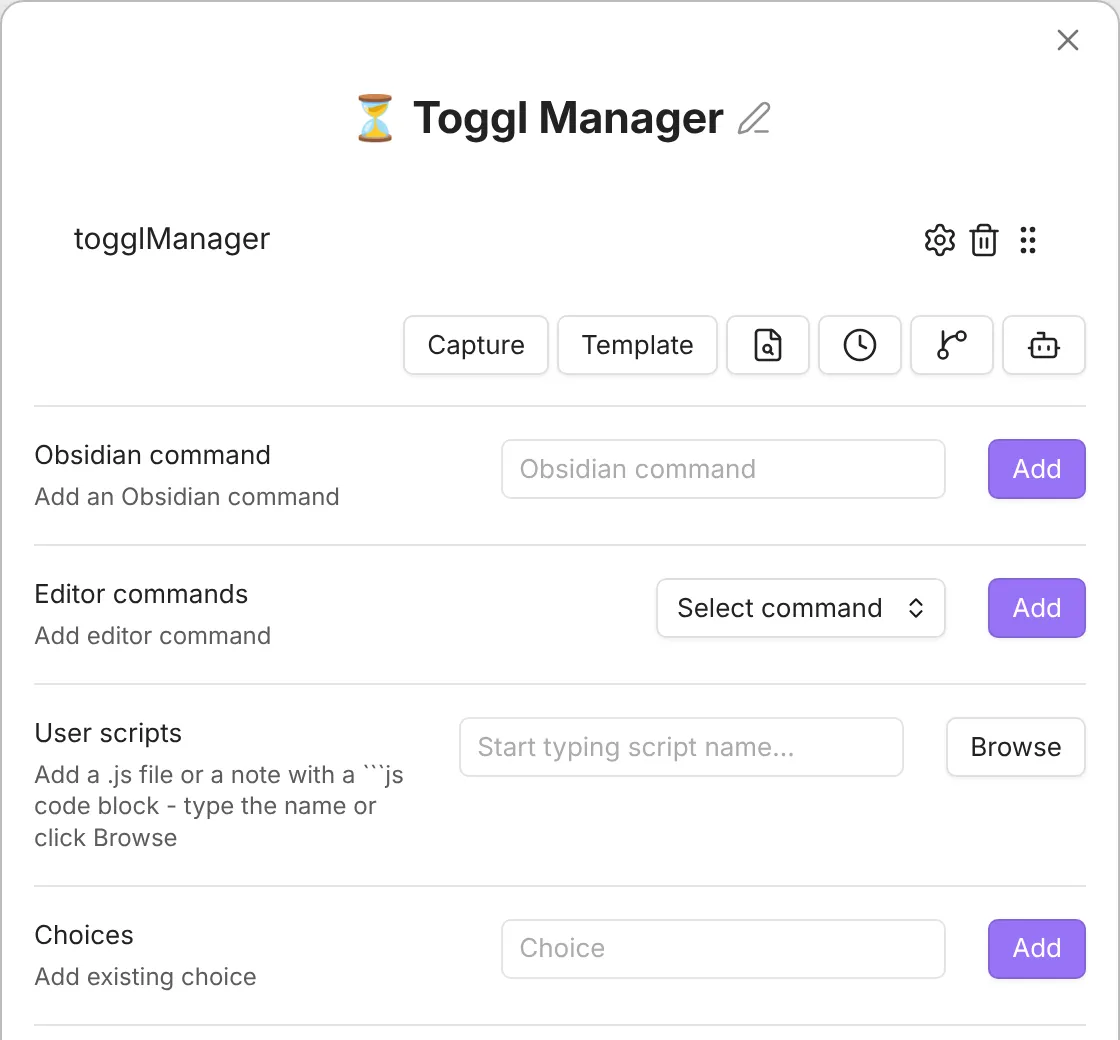
⏳ Toggl Manager. - Add the user script to the command list.
Your Macro should look like this:
Configuration
Section titled “Configuration”You will need to configure your script to match your own settings. I have included some example settings from my own setup, but you’ll likely want to make it match your own preferences.
To customize the script, open the JavaScript file you just saved. You’ll see this menu setup:
const menu = { "🧠 Learning & Skill Development": { // Sub-menu for Learning and Skill Development togglProjectName: "Learning & Skill Development", // Name of your corresponding Toggl project menuOptions: { "✍ Note Making": "Note Making", // Preset time entry. The left part is what's displayed, and the right part is what Toggl gets. "🃏 Spaced Repetition": "Spaced Repetition", // So for this one, I would see '🃏 Spaced Repetition' in my menu, but Toggl would receive 'Spaced Repetition' as the entry. "📖 Read Later Processing": "Read Later Processing", "👨💻 Computer Science & Software Engineering": "Computer Science & Software Engineering", } }, "🤴 Personal": { togglProjectName: "Personal", menuOptions: { "🏋️♂️ Exercise": "Exercise", "🧹 Chores": "Chores", "👨🔬 Systems Work": "Systems Work", "🌀 Weekly Review": "Weekly Review", "📆 Monthly Review": "Monthly Review", "✔ Planning": "Planning", } }, "👨🎓 School": { togglProjectName: "School", menuOptions: { "🧠 Machine Intelligence (MI)": "Machine Intelligence (MI)", "💾 Database Systems (DBS)": "Database Systems (DBS)", "🏃♂ Agile Software Engineering (ASE)": "Agile Software Engineering (ASE)", "💻 P5": "P5", } }};In the menu, there’ll be 3 sub-menus with their own time entries. I have added some comments to explain the anatomy of the menu.
You can customize it however you like. You can add more menus, remove menus, and so on.