
Capture: Fetch Tasks From Todoist
You end up with one QuickAdd command that pulls tasks from your Todoist account into a note in your vault. This is useful for capturing tasks on the go with your phone, then adding them to Obsidian when you get back to your computer.
Prerequisites
Section titled “Prerequisites”- A Todoist API token. In Todoist, open Settings → Integrations → Developer and copy the API token. The script talks to the Todoist API directly, so you don’t need the Todoist plugin for Obsidian.
- The Todoist Script, saved in your vault as a
.jsfile, for examplescripts/todoistTaskSync.js. Don’t save it inside the.obsidianfolder - QuickAdd ignores scripts there. - A macro that runs the script, and a Capture choice that writes its output to a note (set up below).
How it works
Section titled “How it works”The Todoist Script has three exports, SelectFromAllTasks, GetAllTasksFromProject, and GetAllTasksFromSection.
SelectFromAllTaskswill prompt you to select tasks from all tasks on your Todoist account,GetAllTasksFromProjectwill prompt you for a project and get all tasks from that project, andGetAllTasksFromSectionwill prompt you for a section and get all tasks from that section.
If you run the macro as-is, the script asks you which one to run. To always run one of them, reference it in the Capture format with ::, for example {{MACRO:Todoist::GetAllTasksFromProject}}, or name it in the macro’s script command, for example todoistTaskSync::GetAllTasksFromProject.
-
Save the Todoist Script to your vault, for example as
scripts/todoistTaskSync.js. -
In Settings → QuickAdd, add a Macro choice named
Todoist, and add the script to its command list. Add it by its file name (todoistTaskSync) to pick an export when the macro runs, or append an export (todoistTaskSync::GetAllTasksFromProject) to always run that one. Either way, the script’s settings apply. -
Click the gear (⚙️) next to the script command, and paste your Todoist API token into Todoist API token. QuickAdd keeps it in Obsidian’s secret storage, not in
data.json. Leave Complete imported tasks in Todoist ticked, or untick it to leave tasks open in Todoist.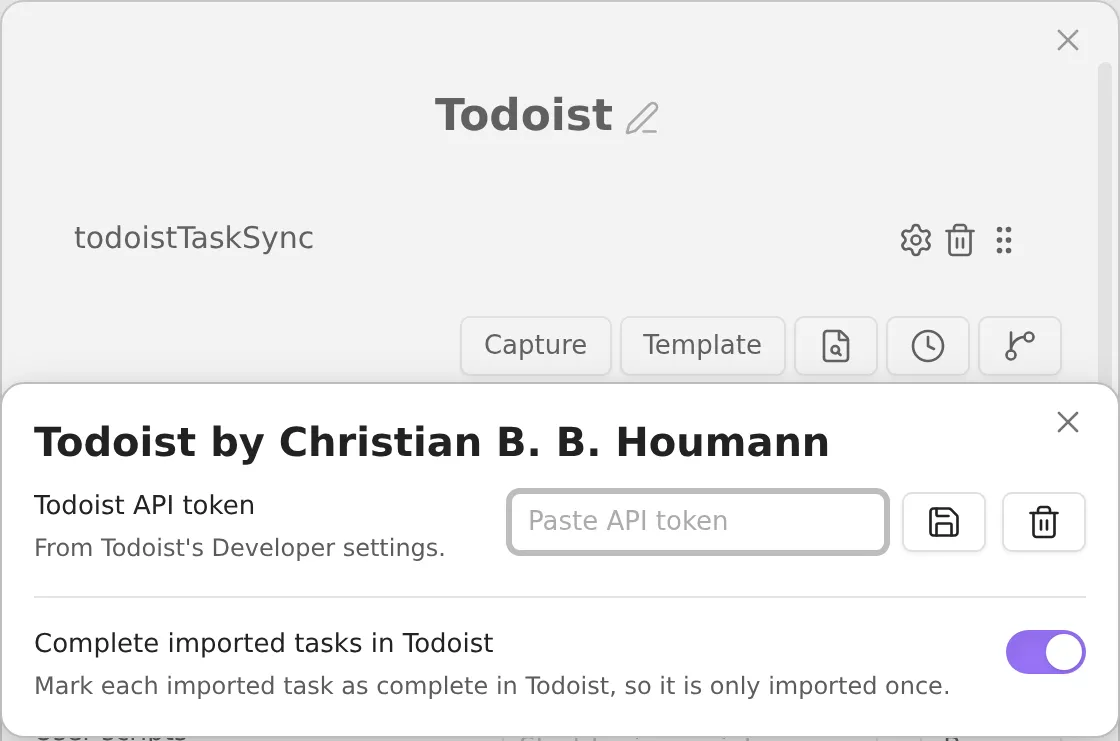
-
Add a Capture choice with these settings:
- Capture to: the path to the file where you want to store the tasks.
- Capture format: Enabled - and in the format, write
{{MACRO:Todoist}}to be asked which export to run, or{{MACRO:Todoist::GetAllTasksFromProject}}(or any of the other exports) to run that one directly.
You can make one Capture choice per export, so each has its own command.
What you get
Section titled “What you get”
The tasks are written in this format:
- [ ] <Task Content> 📅 <YYYY-MM-DD>
Which equals: - [ ] Buy groceries 📅 2021-06-27
This task will be recognized by the Tasks plugin for Obsidian, as well.
If there isn’t a date set for the task, they’ll simply be entered as - [ ] Buy groceries.
Troubleshooting
Section titled “Troubleshooting”- “Add your Todoist API token in the Todoist script’s settings”: open the macro, click the gear next to the script command, and paste the token. Settings belong to each script command, so if the macro has several commands for this script, set the token on the one that runs.
- “Todoist rejected the API token (HTTP 401)”: the token is wrong or was reset. Copy it again from Todoist’s Developer settings.
- “Secret setting … is unavailable. Re-enter it on this device.”: secrets are stored per device. Paste the token again on this device.